Jump to Content
KarmaGuidesAPI ReferenceDiscussionsFAQ
HomeGuidesAPI ReferenceChangelogDiscussions
GuidesAPI ReferenceDiscussionsFAQLog InKarma
Guides
Log In
HomeGuidesAPI ReferenceChangelogDiscussions
All
Pages
Start typing to search…

General

  • On-boarding guide
  • Quick Actions
  • Billing and pricing FAQ
  • Who can request karma
  • Who can edit roles and set options
  • Microkarma
  • Karma Rewards
  • Chrome Dashboard Extension
  • How to delete an account
  • Coupons, vouchers, discounts, promo codes

Options

  • Options
  • Auto-approve all requests
  • Post @karma response to the original channel
  • Copy announcements to this channel
  • Teams
  • Show a reminder for inviting @karma when new channel is created
  • Direct messages from @karma on karma changes
  • Bonus period
  • Allow negative karma
  • Limit karma
  • Time tracking and status reports
  • Status reports

Profiles

  • In-depth user profiles and categories
  • Karma bot user profile metrics
  • Company values

Legal stuff

  • Terms of service
  • Privacy policy
  • End User License Agreement (EULA)

Karma bot for MS Teams

  • Karma for Microsoft Teams
  • Karma Rewards MS Teams
  • Karma bot for MS Teams FAQ
  • Privacy Policy for Microsoft Teams
Powered by 

Who can request karma

This feature will allow to grant or restrict karma requests to simple users.

To set this up use these 3 steps.

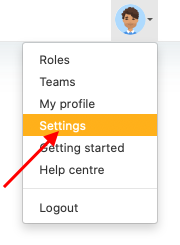
1. Go to Settings via Profile menu

180

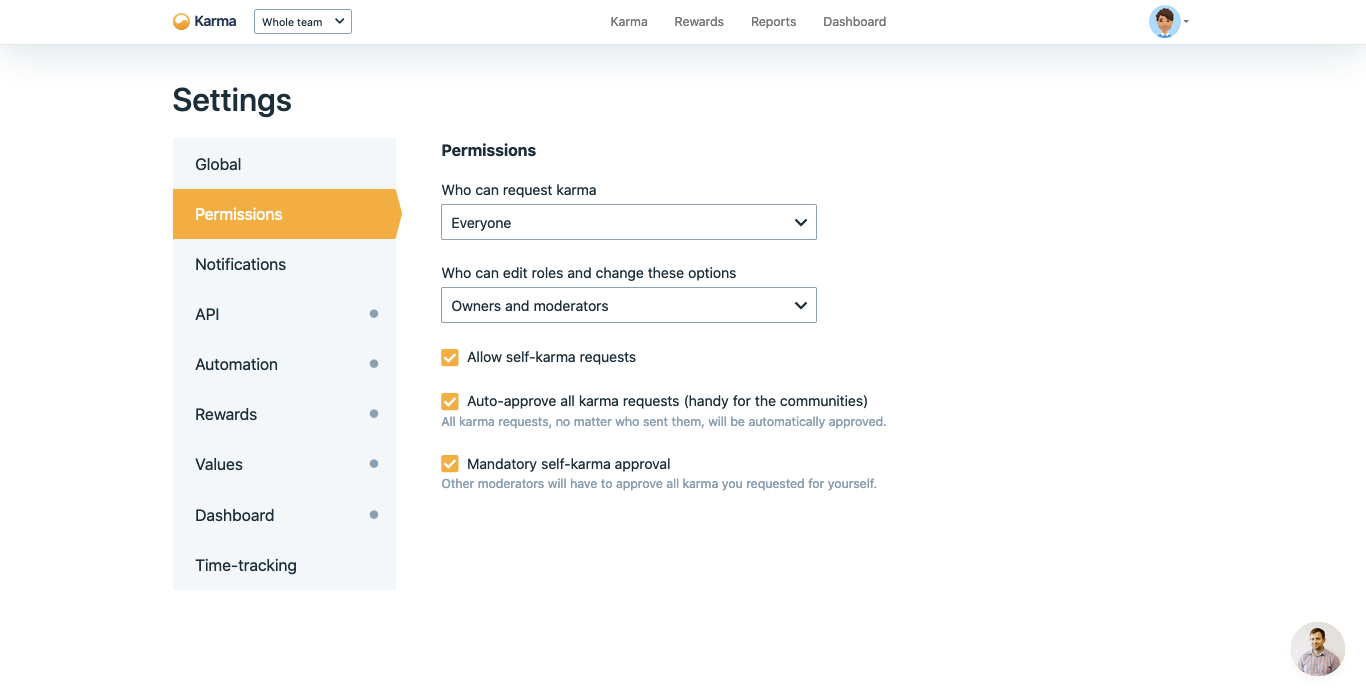
2. Go to Permission section

1366

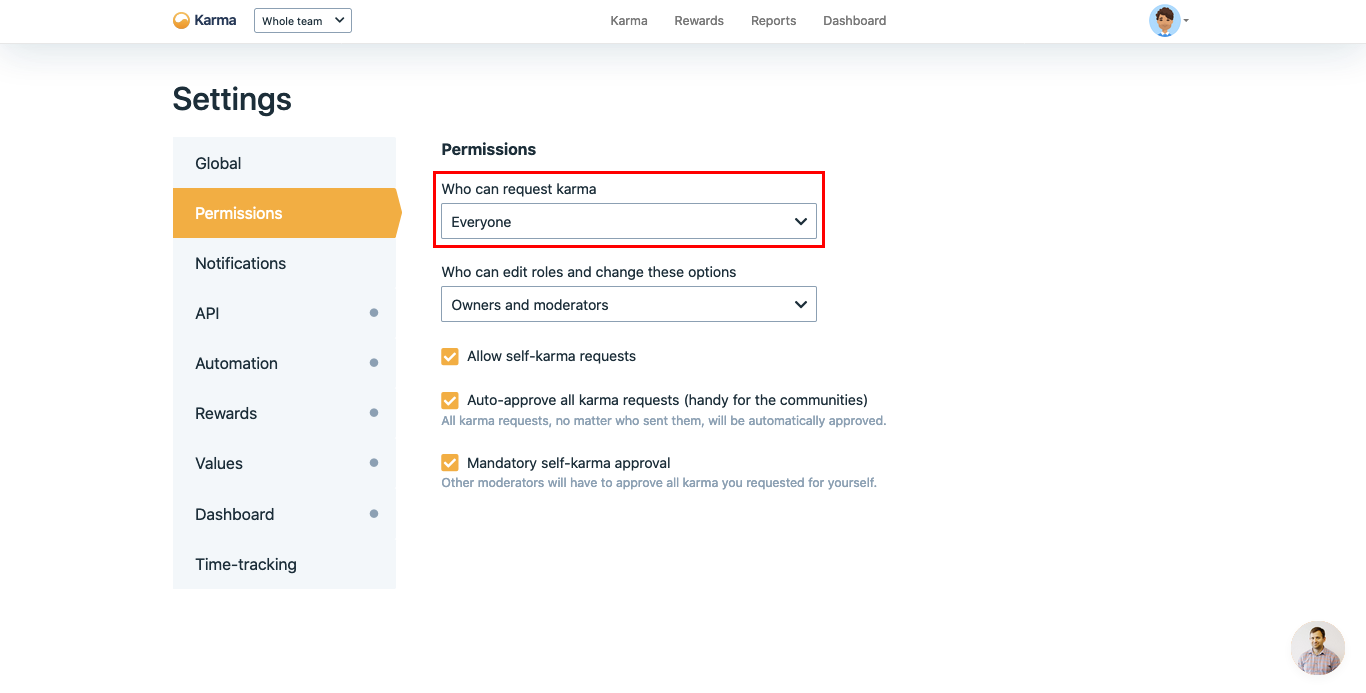
3. Assign Who can request karma option

There are two available options: everyone or owners and moderators.

1366

Updated 7 months ago


Billing and pricing FAQ
Who can edit roles and set options